
WheelFlip for macOS
Natural scrolling on the trackpad. Traditional scrolling on the mouse.
WheelFlip reverses the scroll direction of your mouse wheel and leaves the trackpad alone.
.zip, about 0.3 MB · Requires macOS 14 Sonoma or later on an Apple Silicon Mac (M1 or newer). Intel Macs are not supported.
The problem
macOS has one scrolling switch for two very different devices.
The “Natural scrolling” setting is shared by the mouse and the trackpad. Most people want natural scrolling on the trackpad and traditional scrolling on a wheel mouse — and macOS can't do both.
macOS alone
- Trackpad
- Natural
- Mouse wheel
- Natural too
Pick one direction for both. One of them always feels backwards.
With WheelFlip
- Trackpad
- Natural
- Mouse wheel
- Traditional
Leave the system setting on Natural. WheelFlip reverses only the scrolling that comes from a mouse wheel.
Features
Small, native, and out of your way.
Mouse wheel only
Trackpad scrolling, including the glide after a flick, is untouched. A Magic Mouse is treated like a trackpad and follows the system setting.
Lives in the menu bar
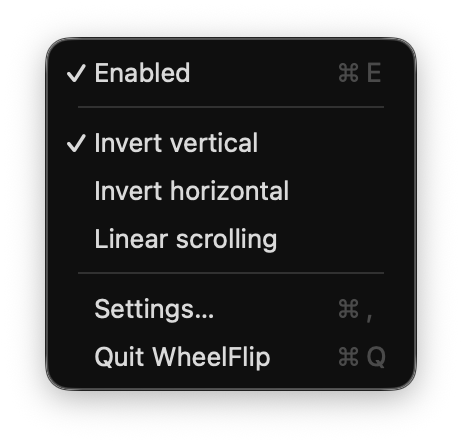
No Dock icon. Turn it on or off from the menu with ⌘E.
Vertical and horizontal
Separate switches for vertical and horizontal scrolling, including tilt wheels and Shift+wheel.
Linear scrolling
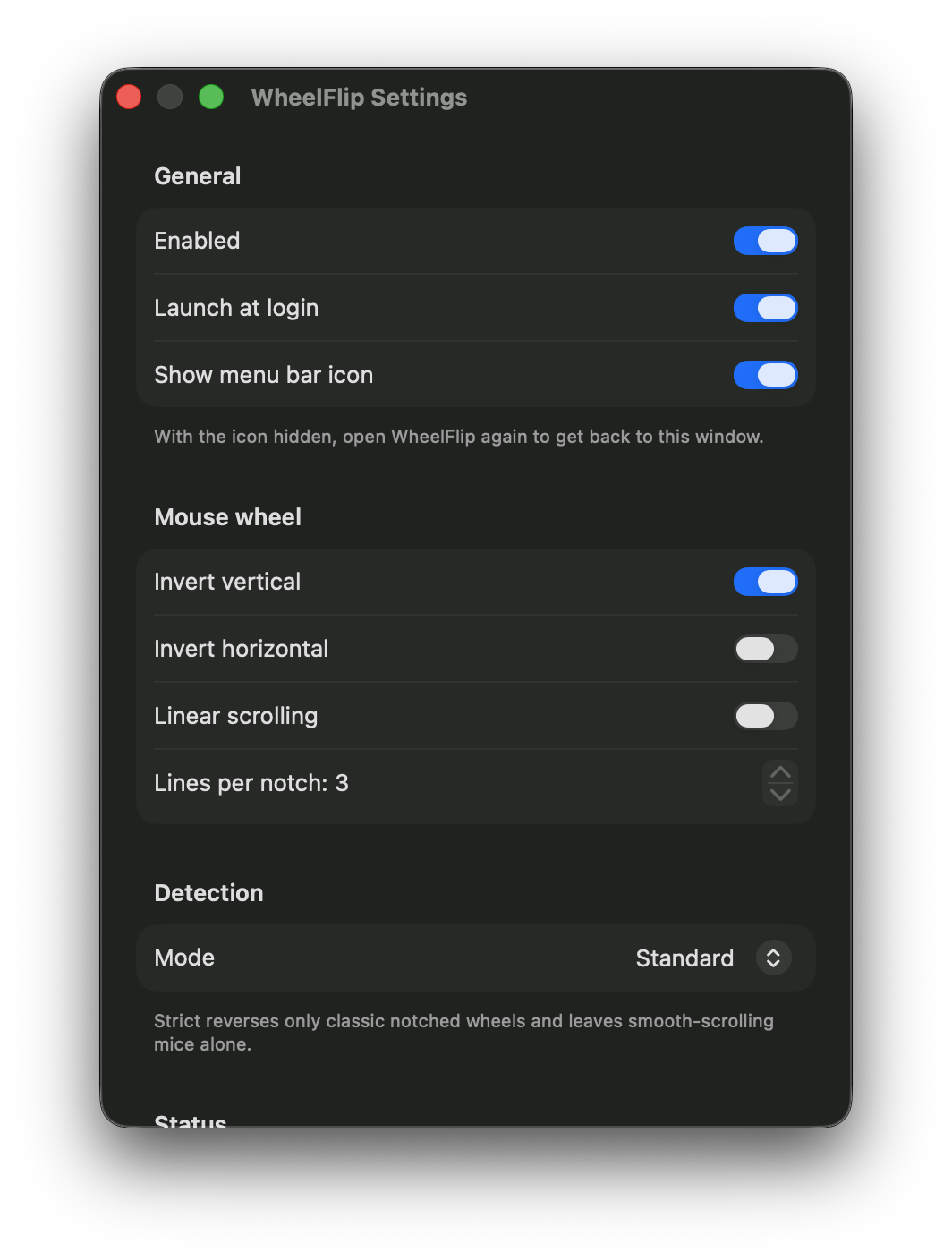
Optional. Removes wheel acceleration so every notch scrolls the same amount, from 1 to 10 lines per notch.
High-resolution wheels
Handles smooth-scrolling wheels. Strict mode limits it to classic notched wheels.
Scroll inspector
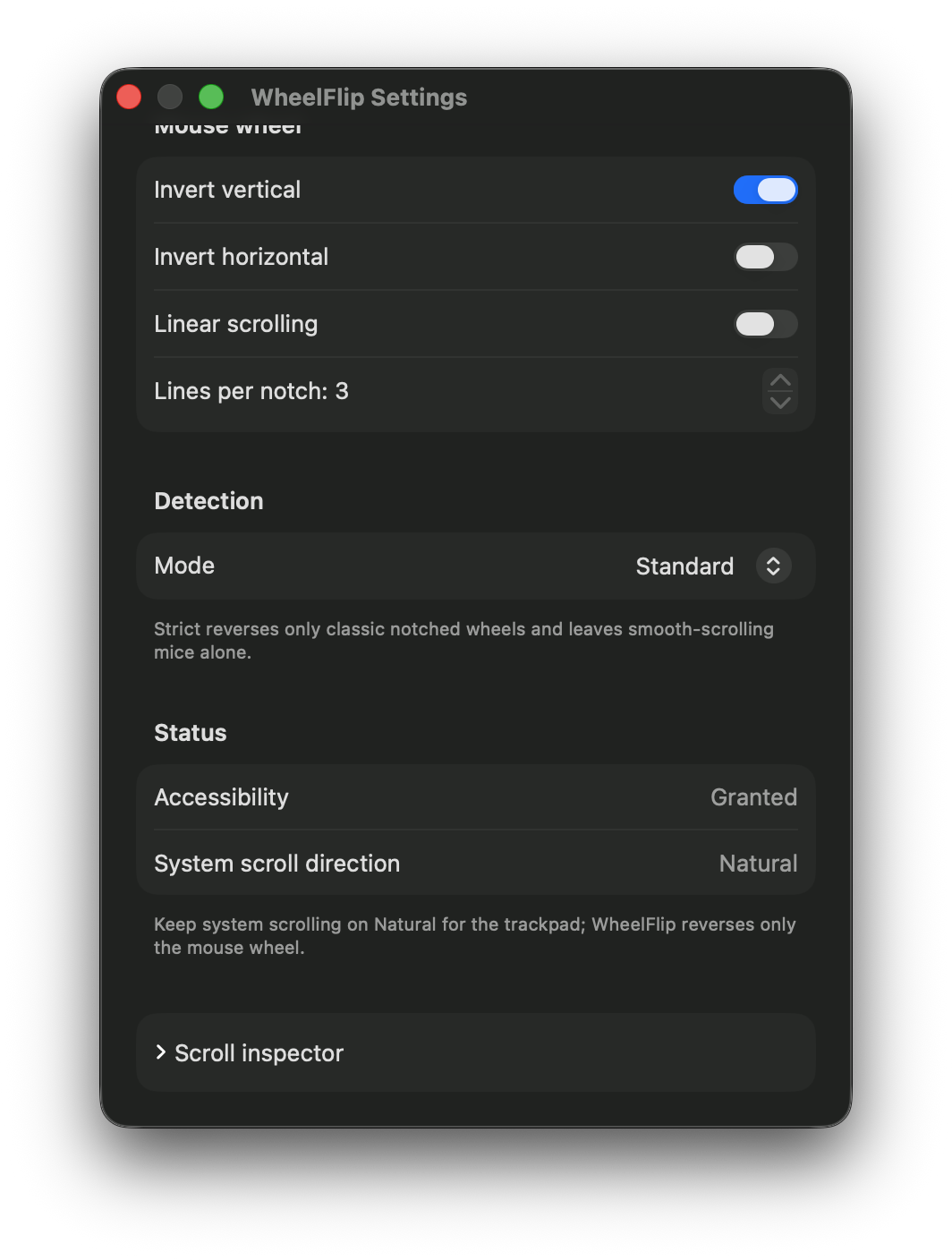
Shows the raw data of the last scroll event and how WheelFlip classified it — for diagnosing unusual mice.
Works immediately
Starts the moment permission is granted. No restart. Launch at login is optional and off by default.
Hideable icon
Hide the menu bar icon and WheelFlip keeps working. Open the app again to get its settings back.
Small and native
About 0.5 MB installed, written in Swift, no measurable CPU use when idle.
Installation guide
Install WheelFlip in 7 steps.
It takes a few minutes. You'll do two things most Mac apps don't ask for: confirm the first launch, and give WheelFlip Accessibility access. Both are done once.
macOS will refuse to open WheelFlip the first time. This is expected, because WheelFlip is not notarized by Apple. Steps 3 and 4 show you how to allow it.
- 1
Download WheelFlip
Download WheelFlip from this page. If your browser did not unzip it, double-click the .zip.
- 2
Move it to Applications
Drag WheelFlip.app into your Applications folder.
- 3
Open WheelFlip — macOS will block it
macOS shows a warning that it could not verify the app, and does not open it. This is expected, because WheelFlip is not notarized by Apple.
Click DoneDo not choose Move to Trash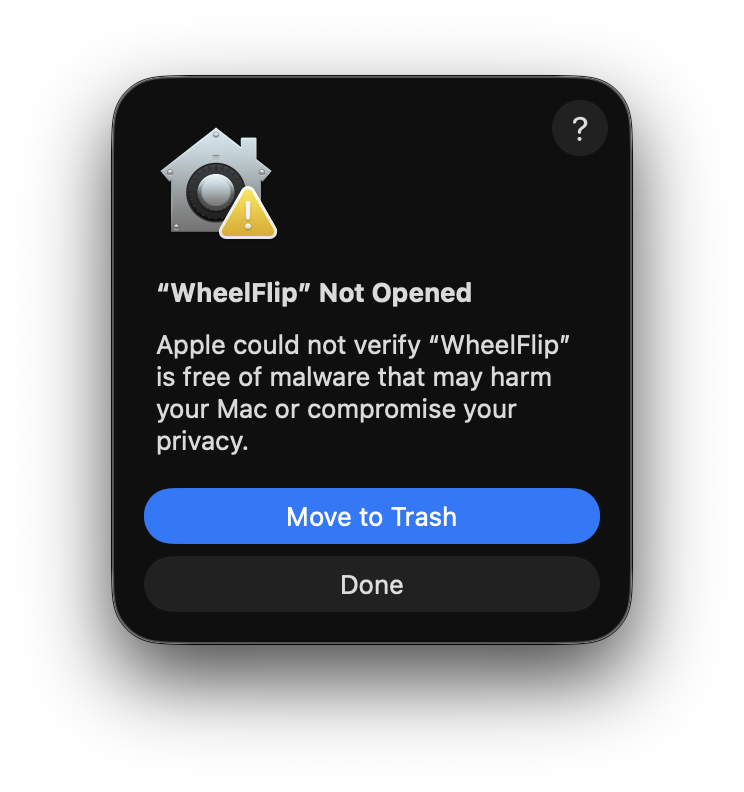
- 4
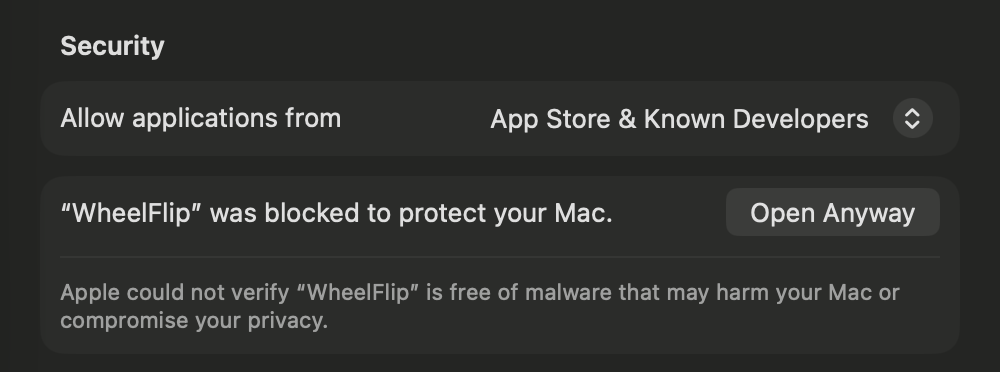
Click Open Anyway
Open System Settings › Privacy & Security and scroll down to the Security section. Next to the message that WheelFlip was blocked, click Open Anyway, then confirm with your password or Touch ID. You only do this once.
Note: the Open Anyway button appears only after step 3, and for about an hour.
Comfortable with Terminal? Use this instead
Run this command, then open WheelFlip normally:
xattr -dr com.apple.quarantine /Applications/WheelFlip.app - 5
Allow Accessibility access
WheelFlip appears in the menu bar and opens its Settings window, and macOS asks for Accessibility access. Click Open System Settings, then switch WheelFlip on under Privacy & Security › Accessibility.

- 6
Check that it's running
Within about a second WheelFlip starts working and its menu bar icon is no longer dimmed.
- 7
Keep Natural scrolling on
Make sure System Settings › Trackpad › Scroll & Zoom › Natural scrolling is on, and leave “Invert vertical” on in WheelFlip (the default).
Done. Your trackpad now scrolls naturally and your wheel scrolls the traditional way.
Ready to install?
Download WheelFlip 1.0.0.zip, about 0.3 MB · Requires macOS 14 Sonoma or later on an Apple Silicon Mac (M1 or newer). Intel Macs are not supported.
Permissions and privacy
Why it needs access, and what it never does.
Why Accessibility
WheelFlip changes scroll events as they pass through the system, and macOS only allows that for apps with Accessibility access.
Scroll events only
WheelFlip receives scroll-wheel events only. It does not receive keyboard or click events.
Fully offline
The app contains no networking code, so nothing leaves your Mac. No analytics, no update checks, no crash reporting.
FAQ
Questions and fixes
Why does macOS warn me when I open it?
WheelFlip is distributed outside the Mac App Store and is not notarized by Apple, so macOS asks you to confirm the first launch. See steps 3 and 4.
The wheel is not reversed.
Open WheelFlip's Settings and look at Status. Accessibility must say Granted and the menu bar icon must not be dimmed. If it says Granted and still nothing happens, remove WheelFlip from the Accessibility list in System Settings, open WheelFlip again and grant access again.
The wheel is reversed twice, or not at all.
A mouse vendor's app (for example Logi Options+) may already be reversing it. Turn the reversal off in one of the two apps.
My Magic Mouse is not reversed.
That is intentional. It behaves like a trackpad and follows the system setting.
One device is handled wrongly.
Open Settings › Scroll inspector and scroll with that device to see how it is classified. If a touch device is being reversed by mistake, set Detection to Strict.
I hid the menu bar icon.
Open WheelFlip again from Applications or Spotlight and its Settings window appears.
How do I update?
WheelFlip does not check for updates. Download the new version here, quit WheelFlip, replace the app in Applications, and repeat step 4.
How do I uninstall?
Choose Quit WheelFlip from its menu and move the app to the Trash. You can also remove it under Privacy & Security › Accessibility and under General › Login Items.